> ## Documentation Index
> Fetch the complete documentation index at: https://docs-beta-fuze.chaoslab.co.nz/llms.txt
> Use this file to discover all available pages before exploring further.

# Quick Start

> Get started with Fuze in 4 simple steps

# Fuze Quick Start (4 Steps)

## 1) Link your account

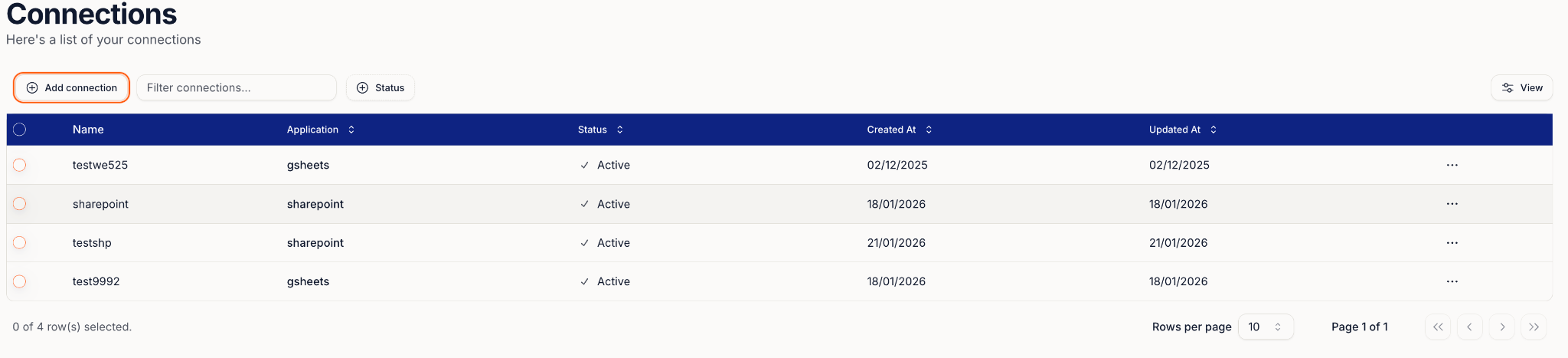
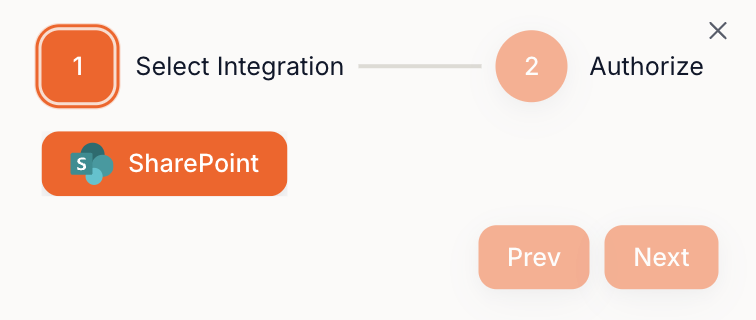
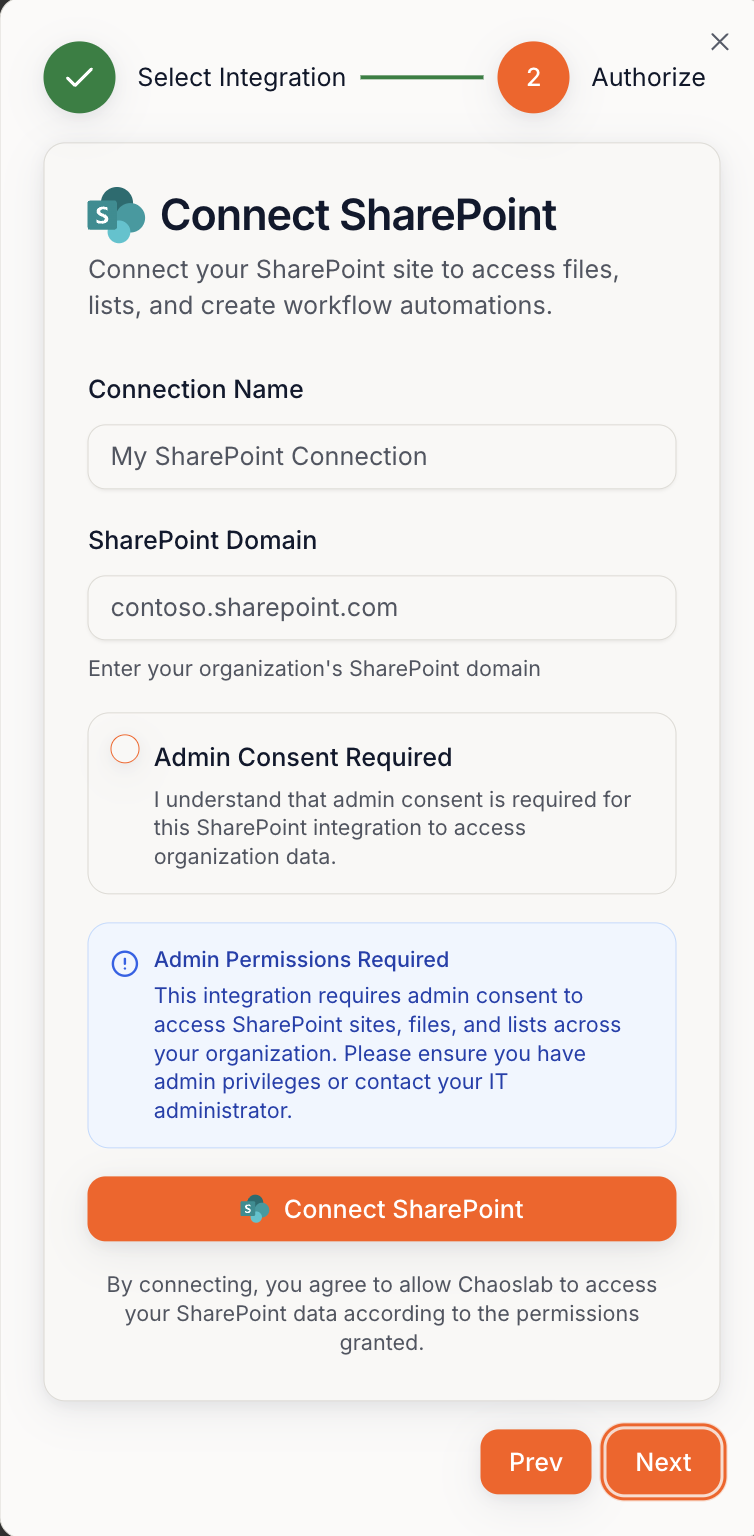
Go to **Connections** → connect **SharePoint**.

<Frame>
  <img src="https://mintcdn.com/fuze-0518d254/nJUOaKEeX059o6Hu/images/Private__SharedUser_guideimage12.png?fit=max&auto=format&n=nJUOaKEeX059o6Hu&q=85&s=16c5a157db0b4a05369c7450e9f24541" alt="Connections menu" width="928" height="92" data-path="images/Private__SharedUser_guideimage12.png" />
</Frame>

<Frame>
  <img src="https://mintcdn.com/fuze-0518d254/nJUOaKEeX059o6Hu/images/Private__SharedUser_guideimage10.png?fit=max&auto=format&n=nJUOaKEeX059o6Hu&q=85&s=924d781249e852569a2824bbe2785227" alt="Connect SharePoint" width="2048" height="467" data-path="images/Private__SharedUser_guideimage10.png" />
</Frame>

<Frame>
  <img src="https://mintcdn.com/fuze-0518d254/nJUOaKEeX059o6Hu/images/Private__SharedUser_guideimage9.png?fit=max&auto=format&n=nJUOaKEeX059o6Hu&q=85&s=ed1207086d86c464af47448858fc7632" alt="SharePoint login" width="756" height="320" data-path="images/Private__SharedUser_guideimage9.png" />
</Frame>

<Frame>
  <img src="https://mintcdn.com/fuze-0518d254/nJUOaKEeX059o6Hu/images/Private__SharedUser_guideimage17.png?fit=max&auto=format&n=nJUOaKEeX059o6Hu&q=85&s=4318ad9431dd6110eefce0014d9c3c42" alt="Connection complete" width="754" height="1536" data-path="images/Private__SharedUser_guideimage17.png" />
</Frame>

***

## 2) Set up your first Blueprint

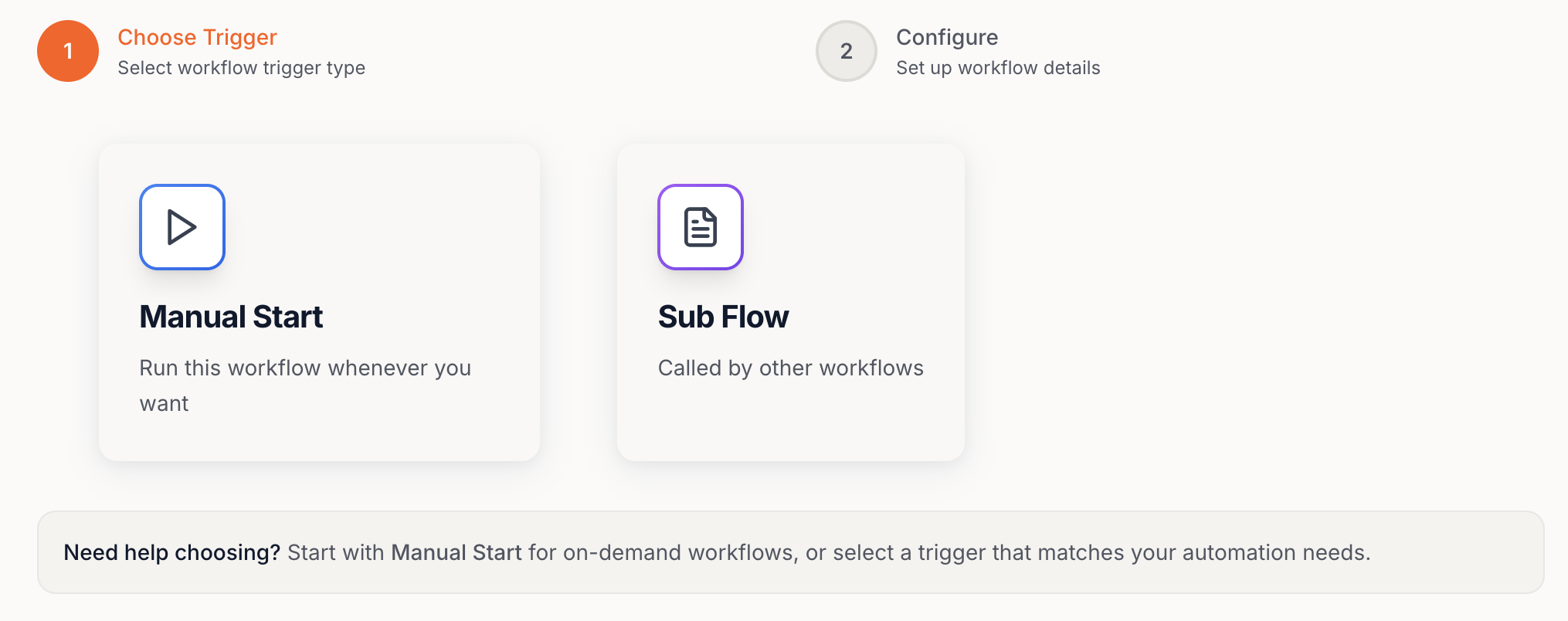
Click **New Workflow** → choose **Manual Start**.

<Frame>
  <img src="https://mintcdn.com/fuze-0518d254/nJUOaKEeX059o6Hu/images/Private__SharedUser_guideimage11.png?fit=max&auto=format&n=nJUOaKEeX059o6Hu&q=85&s=db33799b475c66b5f35416197c2af43d" alt="New Workflow button" width="908" height="80" data-path="images/Private__SharedUser_guideimage11.png" />
</Frame>

<Frame>
  <img src="https://mintcdn.com/fuze-0518d254/nJUOaKEeX059o6Hu/images/Private__SharedUser_guideimage18.png?fit=max&auto=format&n=nJUOaKEeX059o6Hu&q=85&s=fce1e71b1f0565dbb38adf71ce91f8b4" alt="Manual Start option" width="2030" height="804" data-path="images/Private__SharedUser_guideimage18.png" />
</Frame>

***

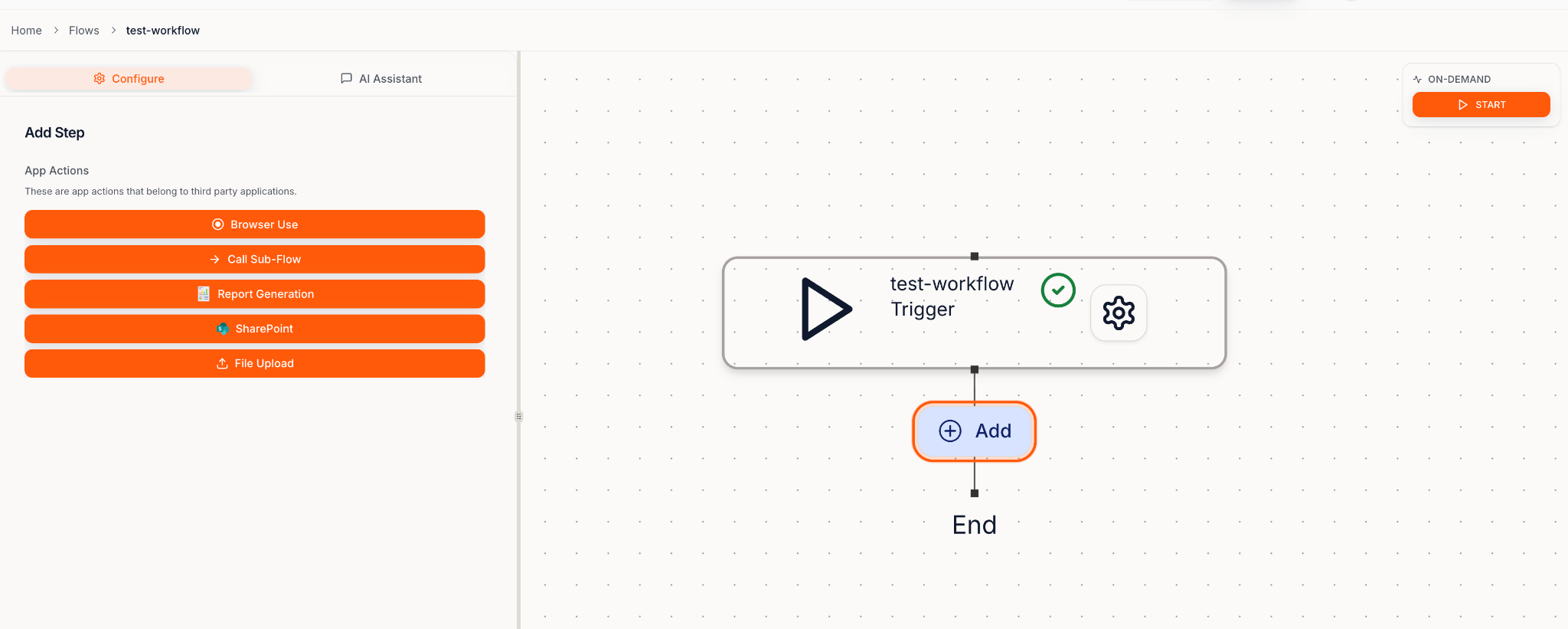
## 3) Add a Step (Action)

Click **+ Add** → pick a step (e.g. **File Upload**, **SharePoint**, **Report Generation**, **Browser Use**).
<Frame>
  <img src="https://mintcdn.com/fuze-0518d254/nJUOaKEeX059o6Hu/images/Private__SharedUser_guideimage1.png?fit=max&auto=format&n=nJUOaKEeX059o6Hu&q=85&s=c2d614605ba4af03f8919782bcbce36a" alt="Add step menu" width="2048" height="821" data-path="images/Private__SharedUser_guideimage1.png" />
</Frame>

***

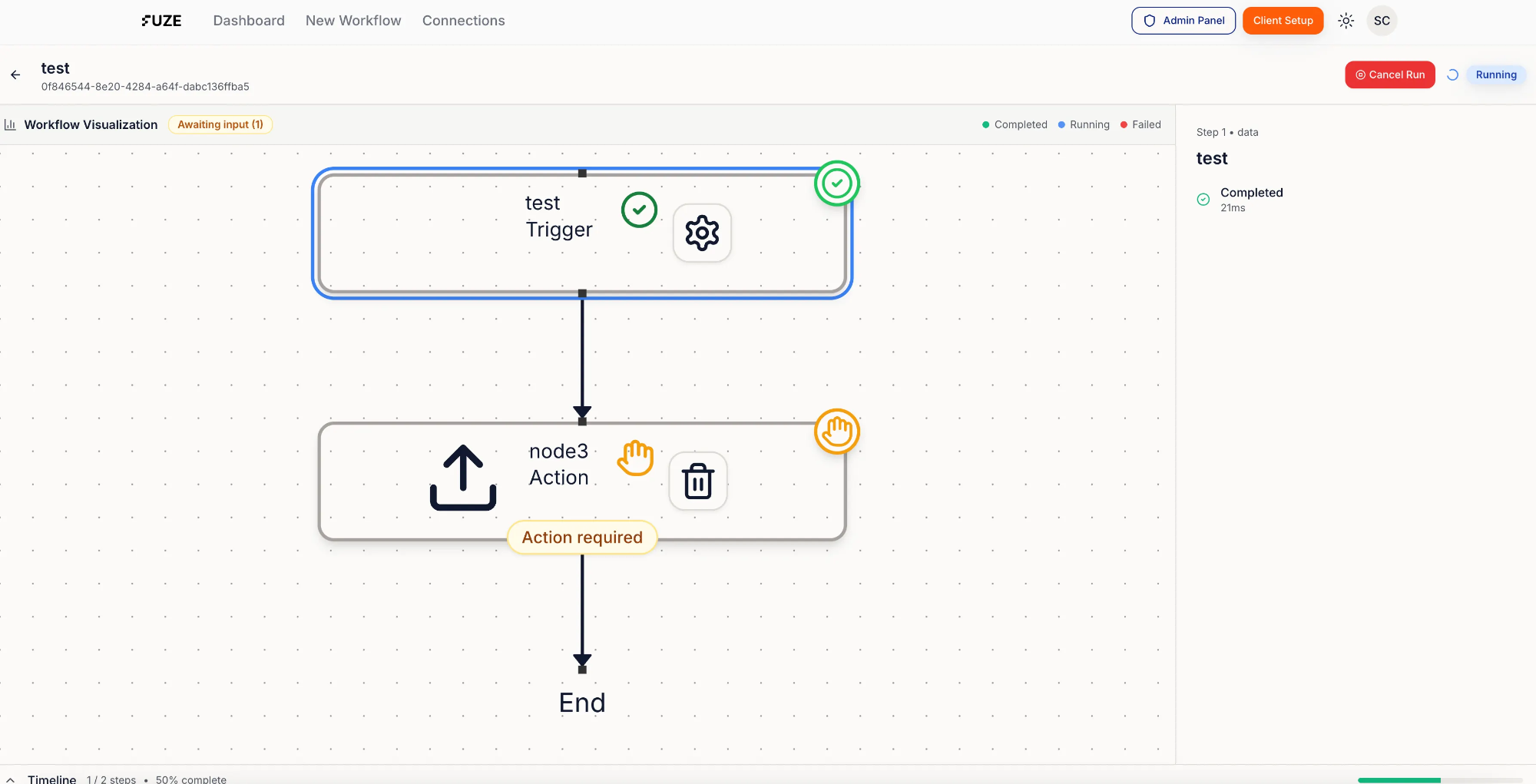
## 4) Run the Blueprint

Click **Start** → follow along in **Run Viewer**.

If it pauses, it just means **Action required** — do the quick check and it continues.
<Frame>
  <img src="https://mintcdn.com/fuze-0518d254/nJUOaKEeX059o6Hu/images/Private__SharedUser_guide9bd418cc-f449-44bc-8732-7d2493ed67b7.png?fit=max&auto=format&n=nJUOaKEeX059o6Hu&q=85&s=007c999194c00857f0cfbaea3dcb30e1" alt="Run Viewer" width="2000" height="1021" data-path="images/Private__SharedUser_guide9bd418cc-f449-44bc-8732-7d2493ed67b7.png" />
</Frame>